If you want to work faster on a Mac, the free launcher app Alfred is the first thing to try.
The short answer: launching apps, finding files, doing arithmetic, looking up words and locking or sleeping the machine are all covered by the free version. The paid Powerpack is for the next tier of features, such as workflows and clipboard history.
Alfred is driven entirely from the keyboard, so the number of times you reach for the trackpad drops noticeably. I open files with Alfred rather than Finder, at work and while writing this.
This article covers everything the free version does, with screenshots. It also settles where to download it, because the official site and the Mac App Store are not the same thing.
Sponsored
What is a launcher app and what does Alfred do?
The short answer: a launcher lets you open apps, files and web pages by typing, without touching the mouse. Alfred is the best known one for macOS.
Opening a file, starting an app, searching a keyword in Chrome. These are things you repeat dozens of times a day, and a launcher keeps your hands on the home row while you do them.
A launcher removes one step
The short answer: opening a file with the mouse takes four steps; with a launcher it takes three.
With a mouse:
- Move the pointer to the folder holding the file
- Double-click the folder
- Move the pointer to the file
- Double-click the file
With a launcher:
- Open the launcher with a keyboard shortcut
- Type the first part of the filename
- Press Enter
It is not only one step fewer. The time spent physically moving the pointer disappears entirely. The deeper the folder, the bigger the gap.
There are really only two things to learn
The short answer: the shortcut that opens Alfred, and typing the name of what you want. Everything else can be added one piece at a time when you need it.
It has a reputation as a developer tool, but nothing about it is specific to engineering. If you can type, it works for you.
Where should you download Alfred?
The short answer: the official site. The Mac App Store version is stuck at 1.2 and was last updated in May 2012.
Alfred – Productivity App for macOS
The current release from the official site is Alfred 5, requiring macOS 10.14 or later and supporting both Intel and Apple Silicon. Searching the App Store for “Alfred” turns up an app with the same name that has not been updated in over a decade; treat it as a different product.
Set the shortcut that opens it
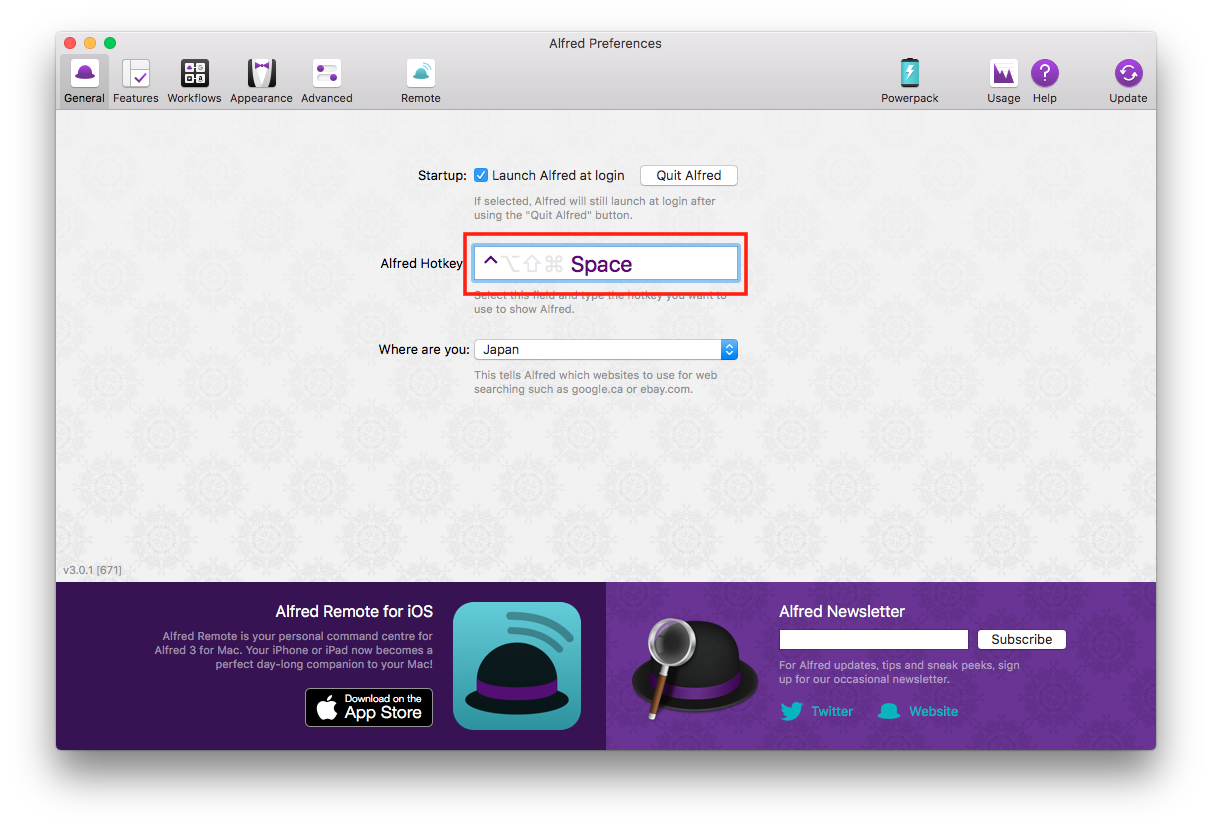
The short answer: the default is Option + Space. Check it first, because it will not open if another app has claimed the same combination.
I changed mine to Ctrl + Space because it is easier to reach. Click the highlighted field and press the keys you want.
Sponsored
What is the difference between the free version and Powerpack?
The short answer: everything in this article is in the free version. Powerpack is a one-time licence that unlocks the automation side.
| Feature | Free | Powerpack |
|---|---|---|
| Launching apps | Yes | Yes |
| File and folder search | Yes | Yes |
| Calculator | Yes | Yes |
| Dictionary (define) | Yes | Yes |
| Web search | Yes | Yes |
| System commands (lock, sleep and so on) | Yes | Yes |
| Large Type | Yes | Yes |
| Workflows (automation) | No | Yes |
| Clipboard history | No | Yes |
| File navigation | No | Yes |
| Custom themes | No | Yes |
| Contacts viewer and music mini player | No | Yes |
Build the daily habit on the free version first, and consider Powerpack when you find yourself wanting workflows or clipboard history.
Searching with Alfred
The short answer: apps, files and folders all follow the same pattern: open Alfred, type a name.
Launching an app
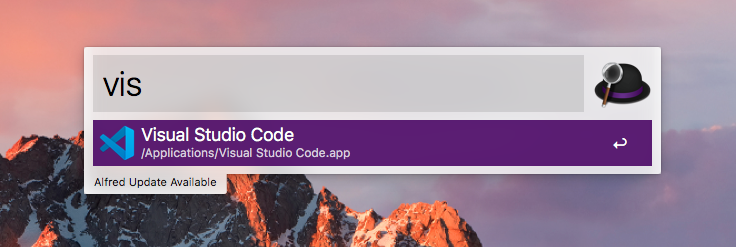
The short answer: type part of the name. You never need the whole thing; a few leading characters narrow the list.
- Open Alfred with your shortcut
- Type part of the app name
- Press Enter
Searching files and folders
The short answer: press Space first to switch to file search mode. A ' appears in the field, and you type the file or folder name after it.
- Open Alfred
- Press Space, and
'appears - Type the file or folder name
- Press Enter
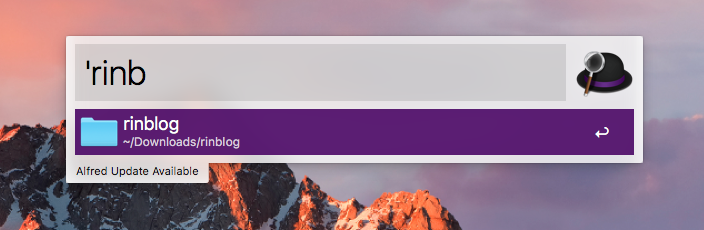
It surfaces files that Finder’s own search misses, which is close to the reason I keep Alfred installed.
Previewing with Quick Look
The short answer: press Shift on a highlighted result to preview it in Quick Look without opening it. You can tell whether it is the right file without launching an application.
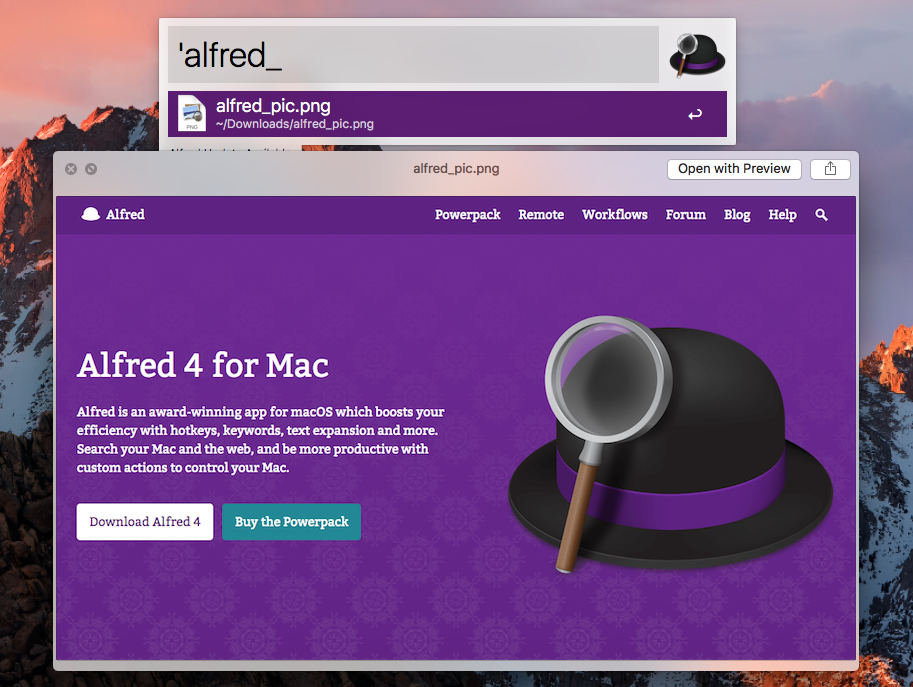
Note that macOS Quick Look cannot display some formats out of the box, WebP among them. Handling WebP files on a Mac with Quick Look and conversion covers the fix.
Sponsored
The other things it saves you opening an app for
The short answer: these four are all in the free version.
Arithmetic
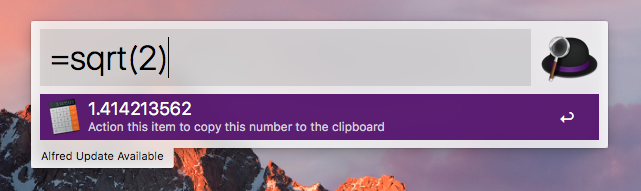
The short answer: type the expression and the answer appears. No calculator app needed.
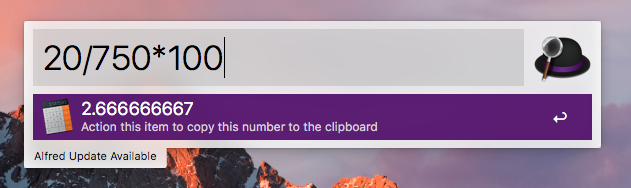
Prefix it with = to evaluate more complex expressions with brackets and functions.
Dictionary lookups with define
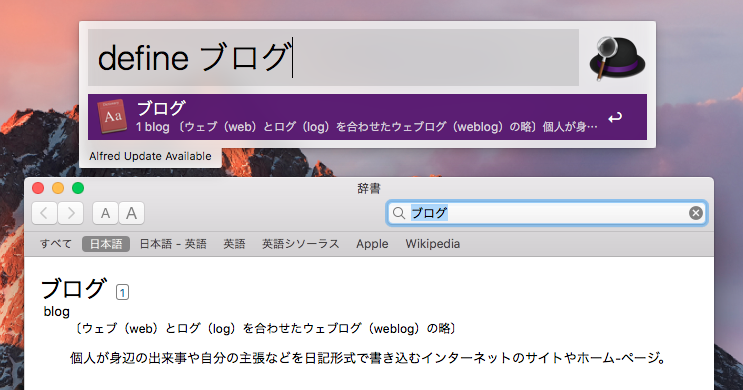
The short answer: type define then a word to see the macOS Dictionary definition inline. Misspellings still return near matches.
- Open Alfred
- Type
defineand press Space - Type the word
Large Type
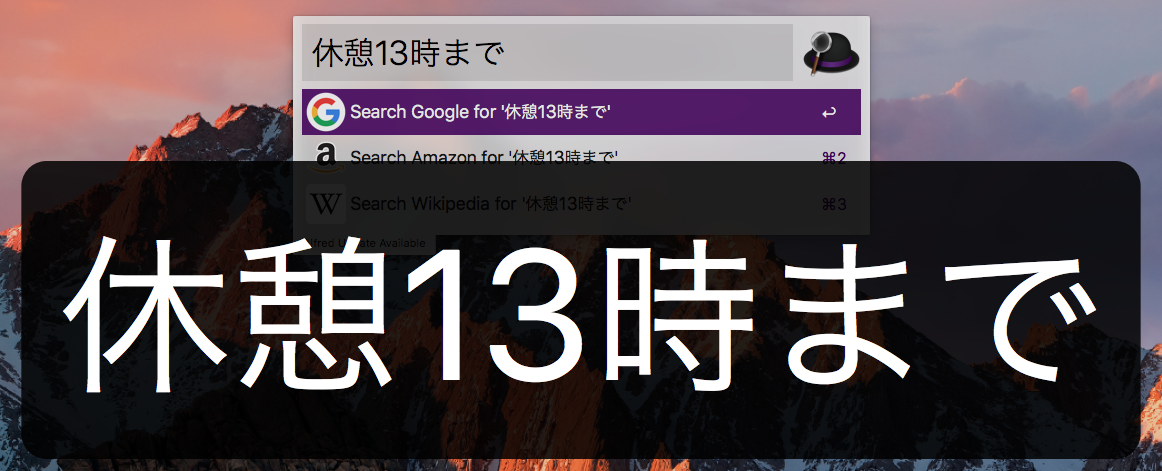
The short answer: press Command + L to blow the text up across the screen.
I use it to read a phone number out to someone across the room, or to share a figure at a meetup. A calculation result can be sent straight to Large Type.
Searching Google and Amazon directly
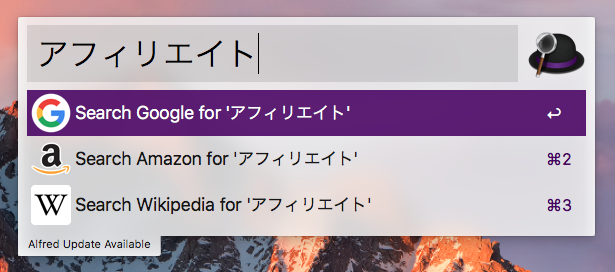
The short answer: type a keyword, pick a web search result, and the search page opens without you starting the browser first.
System commands
The short answer: shutting down, sleeping and similar macOS actions run from a keyword, all in the free version. These are the three I use daily.
lock
Type lock to lock the screen. This is the one for stepping away from the desk.
sleep
sleep puts the Mac to sleep and sleepdisplays sleeps only the displays. Use the second when you want the screen off without interrupting what is running.
emptytrash
emptytrash empties the Trash, replacing the whole open-Finder-and-right-click sequence.
Who is Alfred for?
The short answer: anyone who wants to take their hands off the keyboard less often, and the free version alone is worth installing. The effect is clearest if you open files frequently.
If you only ever use one or two applications, or everything you need already sits in the Dock, the relearning may cost more than it saves.
To tidy up the rest of the Mac environment, see setting up the Mac terminal with Iceberg and Prezto pure and creating a password-protected ZIP on macOS.