This article covers the seven VS Code extensions worth installing if you write HTML and CSS for a living, with extension IDs and settings for each.
The short answer: install Prettier, Live Server, Path Intellisense, Auto Rename Tag, HTMLHint, CSS Peek and vscode-icons. Between them they cover formatting, previewing, path completion, tag editing, syntax checking, CSS navigation and file identification — the seven places where you actually stop and lose time.
This list was first published in 2021 and revised in September 2026. Two of the original picks, Beautify and AutoFileName, have been replaced by better-maintained successors. Two others became built-in features of VS Code itself, so the last section covers how to use those without an extension. Checked on VS Code 1.135.0.
Sponsored
The seven extensions worth installing
Paste the extension ID into the Extensions view search box. Several of these have similarly named copies, and searching by ID avoids installing the wrong one.
▼The seven, with IDs
| Extension | Extension ID | What it does |
|---|---|---|
| Prettier – Code formatter | esbenp.prettier-vscode |
Formats code on save |
| Live Server | ritwickdey.LiveServer |
Reloads the browser when you save |
| Path Intellisense | christian-kohler.path-intellisense |
Completes file paths |
| Auto Rename Tag | formulahendry.auto-rename-tag |
Renames the closing tag with the opening one |
| HTMLHint | HTMLHint.vscode-htmlhint |
Flags HTML mistakes as you type |
| CSS Peek | pranaygp.vscode-css-peek |
Jumps from a class name to its CSS |
| vscode-icons | vscode-icons-team.vscode-icons |
Adds file-type icons to the tree |
Prettier: formats your code the moment you save
Prettier reformats HTML, CSS and JavaScript every time you save. With over 70 million installs as of September 2026, it is the de facto standard for formatting.
It handles HTML, CSS, SCSS, Less, JavaScript, TypeScript, JSX, JSON, Vue, Markdown and YAML. Once it is on, the time you used to spend lining up indentation simply disappears.
Two settings turn on format-on-save:
{
	"editor.formatOnSave": true,
	"editor.defaultFormatter": "esbenp.prettier-vscode"
}
You can scope it per language. To leave HTML alone but format everything else:
{
	"[html]": {
		"editor.formatOnSave": false
	}
}
To share the same formatting across a team, commit a .prettierrc file at the root of the repository. Everyone’s editor then produces identical output, which keeps formatting noise out of your diffs.
▼Changed since the 2021 list
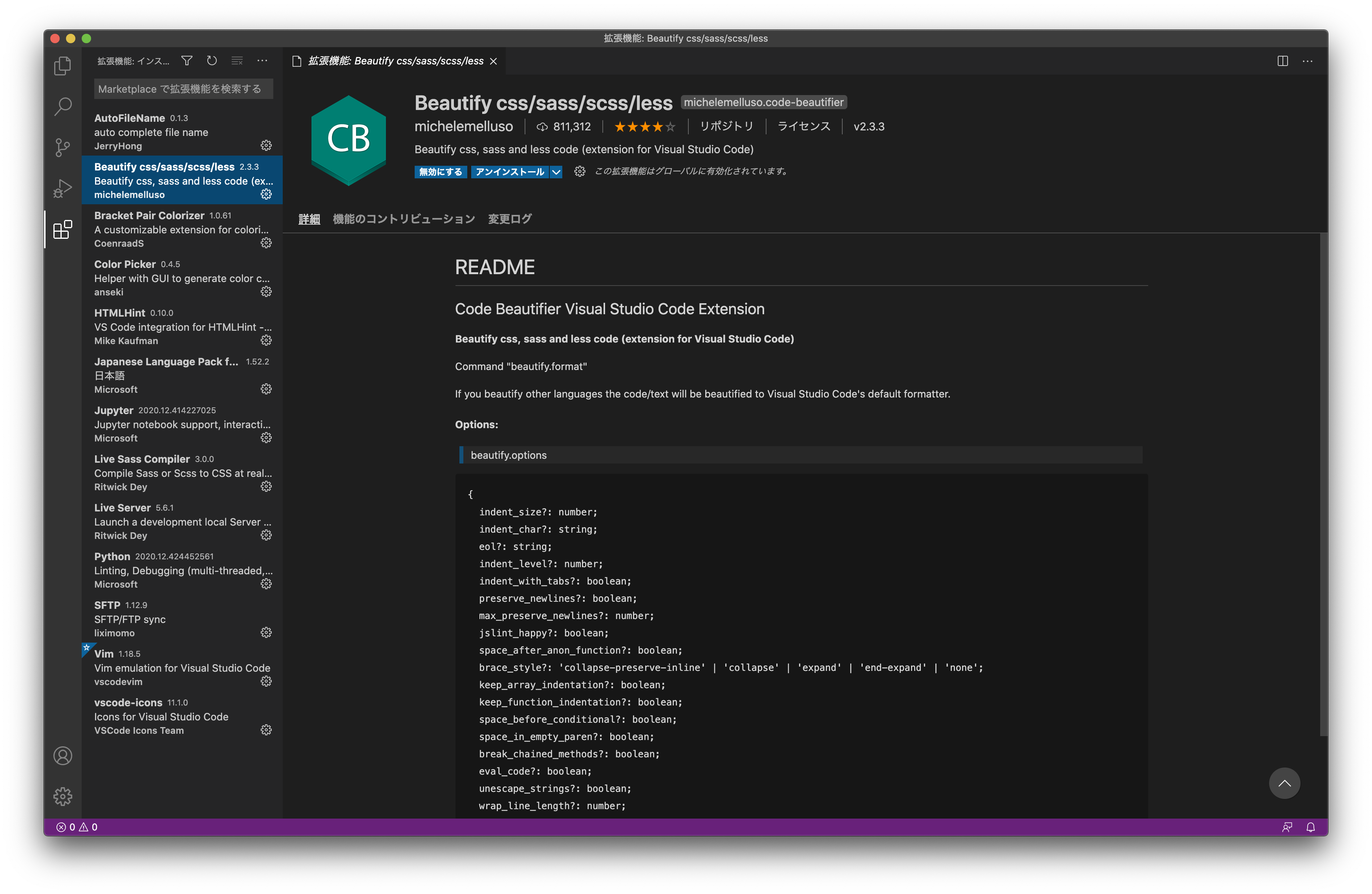
This slot used to hold “Beautify css/sass/scss/less” by HookyQR. That extension is no longer maintained and is marked deprecated; its GitHub repository still carries an open issue asking someone to take it over. Prettier covers more languages, shares configuration through a file, and is actively developed, so it replaces it outright.
Sponsored
Live Server: the browser reloads when you save
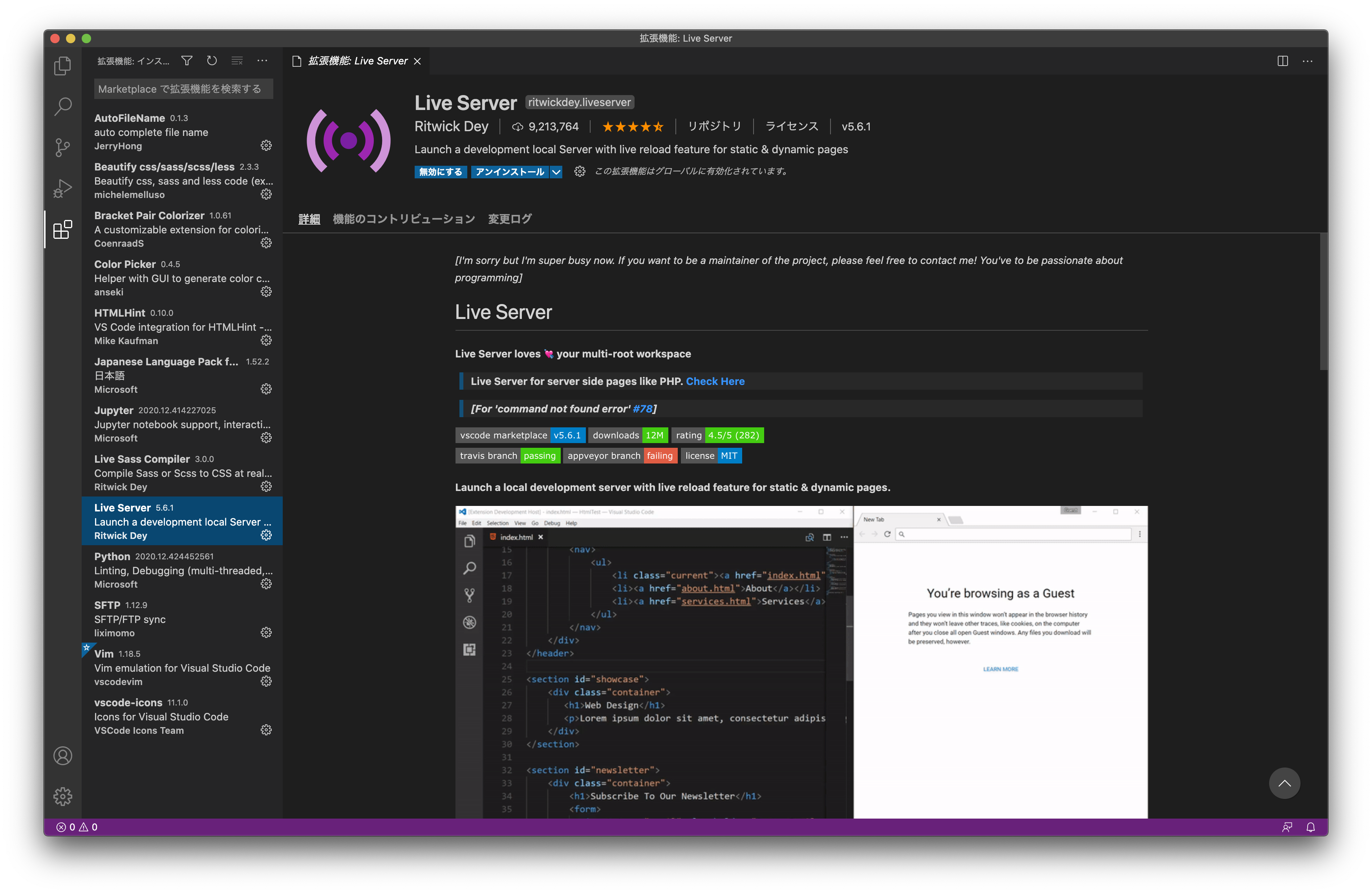
Live Server starts a local server and reloads the browser every time you save. It is one of the original seven that still stands unchanged.
Right-click an HTML file, choose “Open with Live Server”, and the page opens in your default browser. From then on, saving updates the page. The command + R reflex disappears entirely, which matters most when you are nudging CSS values a pixel at a time.
Port and browser are configurable:
{
	"liveServer.settings.port": 5500,
	"liveServer.settings.CustomBrowser": "chrome",
	"liveServer.settings.donotShowInfoMsg": true
}
Microsoft publishes a similar extension called Live Preview (ms-vscode.live-server), which renders the page inside a VS Code tab instead.
▼Live Server vs Live Preview
| Live Server | Live Preview | |
|---|---|---|
| Renders in | External browser | A VS Code tab |
| DevTools | The browser’s own | Limited |
| Best for | Checking real rendering and responsive layout | Staying in the editor while writing |
Use Live Server when you need the page to behave like a real page, and Live Preview when you would rather not switch windows. Installing both causes no conflict.
Path Intellisense: completes file paths
Path Intellisense suggests file paths inside src="" and import statements, which removes the broken-image class of bug caused by a typo in a path.
Type a slash inside the quotes and the folder contents appear as suggestions. VS Code already completes paths in HTML and CSS on its own; what Path Intellisense adds is coverage of JavaScript import statements and path aliases.
If your project uses aliases, map them in settings:
{
	"path-intellisense.mappings": {
		"@": "${workspaceFolder}/src",
		"~": "${workspaceFolder}"
	},
	"path-intellisense.extensionOnImport": true,
	"path-intellisense.autoTriggerNextSuggestion": true
}
On TypeScript projects it reads baseUrl and paths from tsconfig.json, so the mapping above is usually unnecessary.
▼Changed since the 2021 list
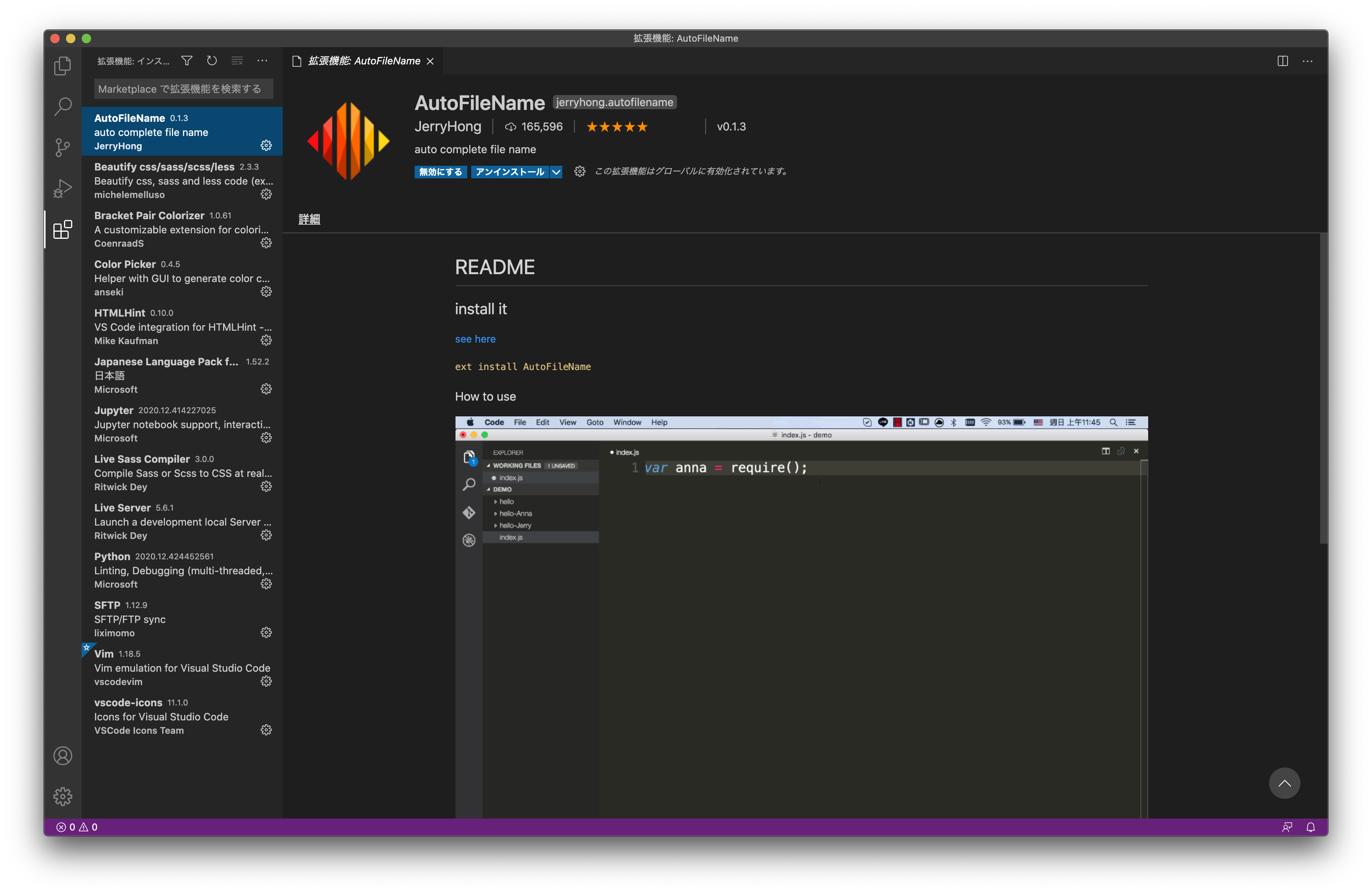
This slot used to hold “AutoFileName” by JerryHong, last updated in 2017. Plain HTML and CSS path completion is now built into VS Code, so the extension only earns a place if it does more than the editor already does. Path Intellisense does, which is why it takes over here.
Sponsored
Auto Rename Tag: the closing tag follows the opening one
Change <div> to <section> and the matching closing tag changes with it. Forgetting to update a closing tag stops being possible.
It works in HTML, XML, PHP and JSX. In markup work where you restructure blocks repeatedly, this is the extension whose effect you notice fastest.
One caveat. VS Code has a built-in setting that does the same job, editor.linkedEditing, and Auto Rename Tag deliberately stands down in HTML and Handlebars when it is enabled. If you only write HTML, the built-in setting is enough on its own.
{
	"editor.linkedEditing": true
}
Auto Rename Tag earns its place when you also work in JSX or PHP templates, where the built-in setting does not apply. Choose based on the file types you actually edit.
HTMLHint: flags HTML mistakes as you type
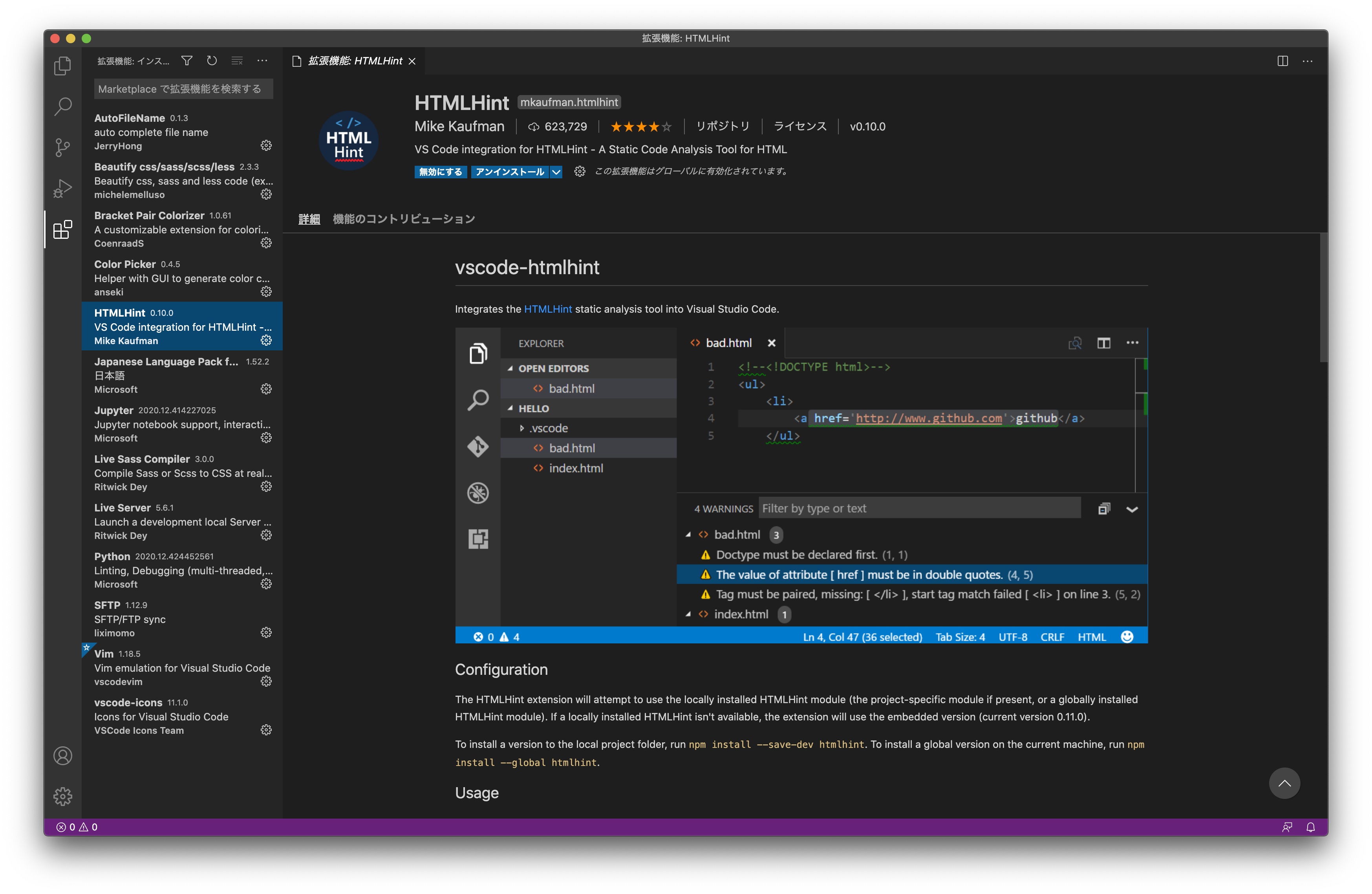
HTMLHint checks your HTML against ten rules that are enabled by default.
▼The default rules
doctype-first: the DOCTYPE declaration comes firsttagname-lowercase: tag names are lowercaseattr-lowercase: attribute names are lowercaseattr-value-double-quotes: attribute values use double quotesattr-no-duplication: no duplicated attributestag-pair: every tag is closedspec-char-escape: special characters are escapedid-unique: no duplicated IDssrc-not-empty: src attributes are not emptytitle-require: a title element exists
Override them with a .htmlhintrc file at the project root. If you are editing template fragments, the DOCTYPE and title rules will fire constantly, so turn them off:
{
	"doctype-first": false,
	"title-require": false,
	"tag-pair": true,
	"id-unique": true
}
The official publisher is HTMLHint. Individually published extensions with the same name also show up in search, so confirm the extension ID is HTMLHint.vscode-htmlhint.
CSS Peek: jump from a class name to its CSS
CSS Peek lets you jump from a class or ID in your markup straight to where it is defined. On a project with more than a couple of stylesheets, this removes a lot of searching.
Three ways to use it:
- F12: open the CSS file and jump to the rule
- ctrl + shift + F12: show the rule inline in a small window and edit it there
- ctrl + hover: preview the rule without leaving the file
It reads CSS, SCSS and Less, and works from HTML, React, Vue, Svelte, Pug and EJS.
The inline window is the part that pays off most. “Where did I define that class?” stops being a round trip through search, and the gap widens as the stylesheet grows.
vscode-icons: tell file types apart at a glance
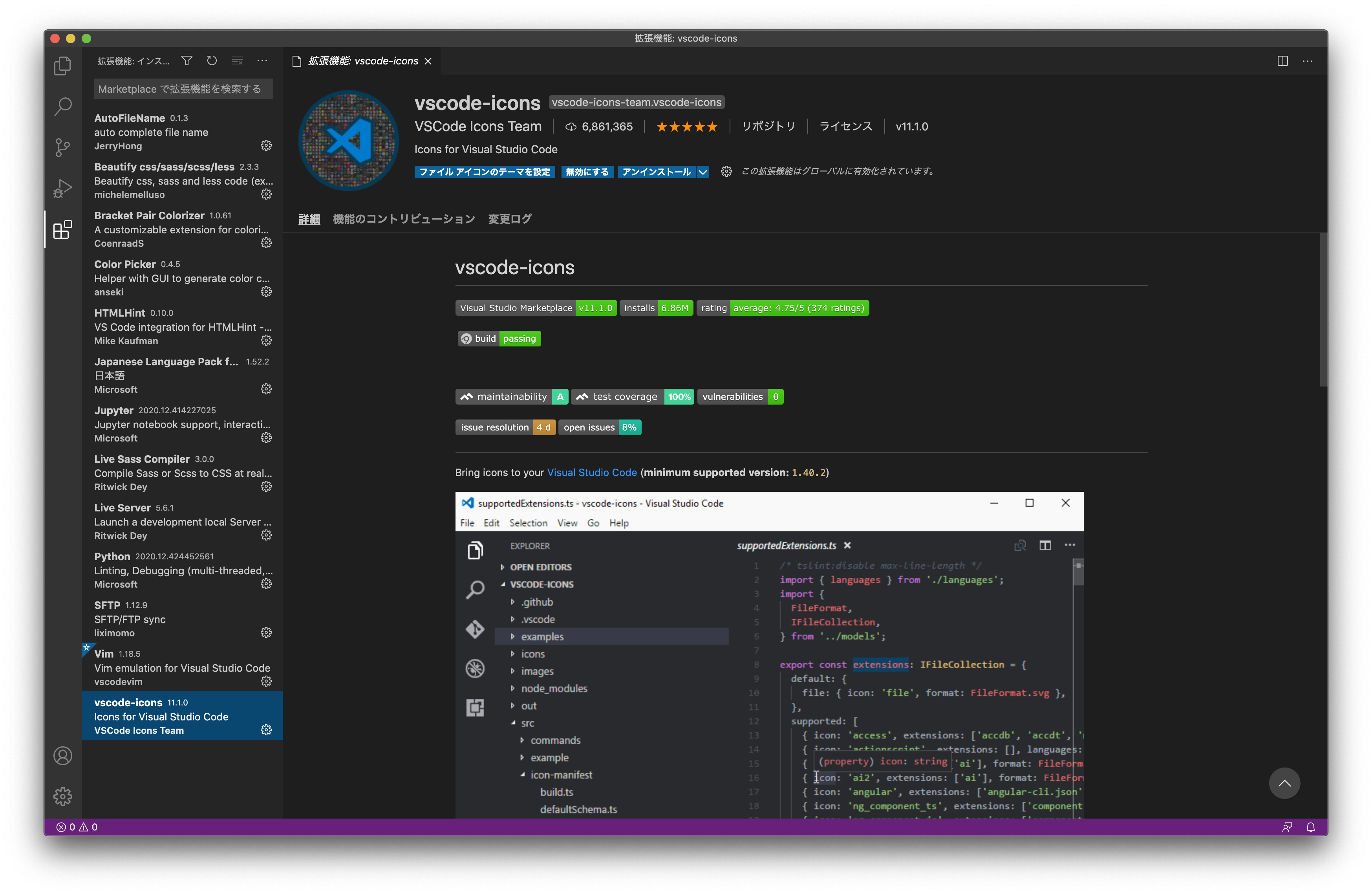
vscode-icons adds file-type icons to the explorer, so you find files by shape and colour instead of reading names.
It is not essential, but it starts to matter once a project has more than a few dozen files. HTML, CSS, JS, JSON and images become distinguishable at a glance, which speeds up scanning the tree.
Material Icon Theme (PKief.material-icon-theme) does the same job with flatter, more uniform icons. There is no meaningful functional difference, so pick whichever you prefer — this one is a matter of taste, not merit.
Two things you no longer need an extension for
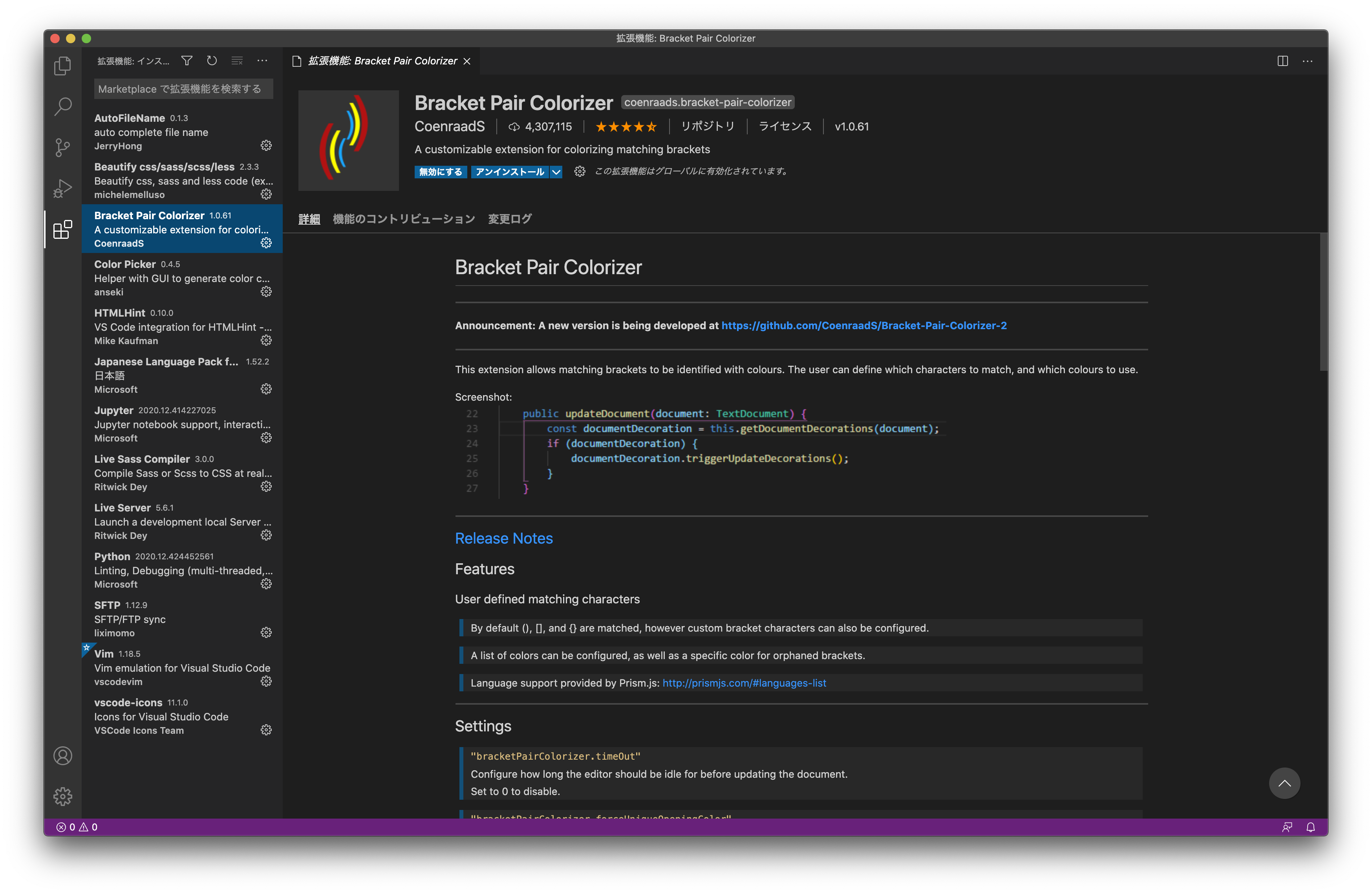
Bracket pair colouring and the colour picker, both on the 2021 list, are now built into VS Code.
These were not dropped because they stopped being useful. They were absorbed into the editor and became faster. Knowing the setting names is worth it, because it lets you fix them yourself when they appear to be off.
Bracket pair colouring is on by default
Colouring matching brackets landed in VS Code 1.60 in August 2021 and became enabled by default in 1.67 in April 2022.
{
	"editor.bracketPairColorization.enabled": true,
	"editor.guides.bracketPairs": "active"
}
Microsoft reported that reimplementing it inside the editor brought the processing time under a millisecond. The extension version had to round-trip through the extension host on every repaint, which caused visible flicker when scrolling large files.
The original “Bracket Pair Colorizer” extension is now marked Deprecated on the Marketplace. If it is still installed, remove it — running it alongside the built-in feature means the work is done twice.
The colour picker opens on hover in CSS
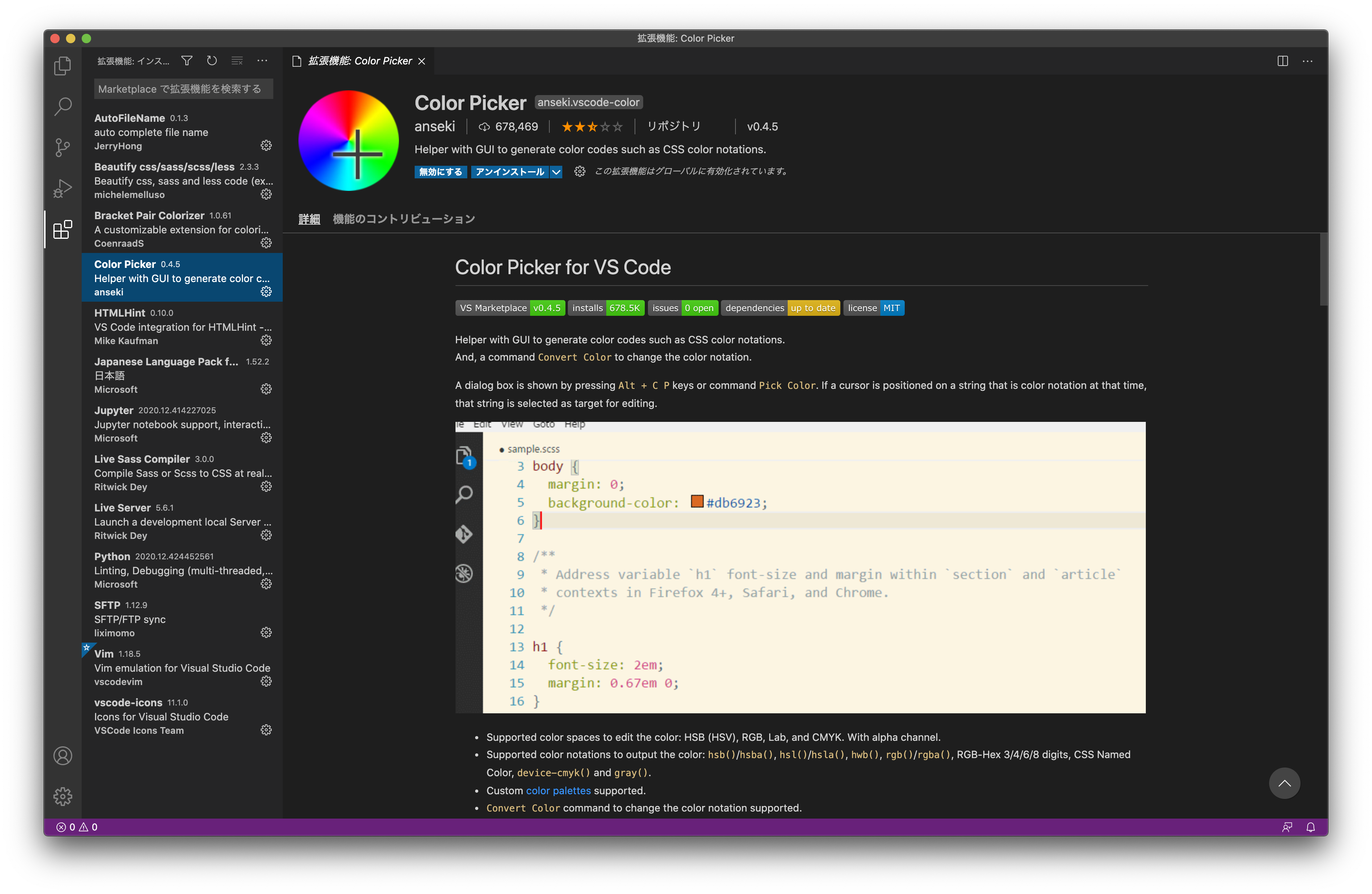
Hover a colour value in CSS or HTML and the built-in colour picker appears. A small swatch (a colour decorator) sits beside the value, and clicking it opens the picker.
{
	"editor.colorDecorators": true,
	"editor.defaultColorDecorators": "auto"
}
The “Color Picker” extension by anseki is still installable, but its last update was in 2015. For picking hex colours in CSS, the built-in feature covers the use case.
Before you install anything
Check whether the editor already does it. The more useful an extension is, the more likely it gets absorbed into VS Code.
Two of the seven from 2021 became built-in features within five years. That will keep happening. Installing a list of extensions in one go is a worse strategy than adding one when you hit the problem it solves — the result is a lighter environment either way.
Conflicting extensions produce the hardest bugs to diagnose: formatting that changes on every save, or completion suggestions appearing twice. Formatters in particular will always collide, so set editor.defaultFormatter explicitly rather than leaving it to chance.
If VS Code is still in English and you would rather work in Japanese, switching VS Code to Japanese on macOS covers that first. Coming from Vim, using Vim inside VS Code restores modal editing without giving up any of the above.